Play the station on a speaker
By the end of this page the station is playing on a speaker or a television in your home: anything with Chromecast built in, a Sonos, a BluOS player, or a UPnP/DLNA renderer such as an AV receiver. You start and stop it from the Desk, and the station keeps it playing until you do.
Listening explains how the station drives a speaker, what the speaker shows, and why it counts as a listener.
You need a station on air, signed in as an operator, and a speaker on the same home network as the station. If the station runs in Docker, know whether its container is on a bridge network (the default for Compose and for Unraid) or on the host's network: step 2 depends on it.
1. Turn on the Speakers plugin
Open Settings → Plugins and open Speakers.
- Switch it on. The first time, the station asks Enable Speakers? and explains that a plugin is trusted code. Press Enable Speakers.
- Leave Look for speakers on the network on. It finds Chromecasts, BluOS players and UPnP renderers without being told their addresses.
- Press Save configuration.
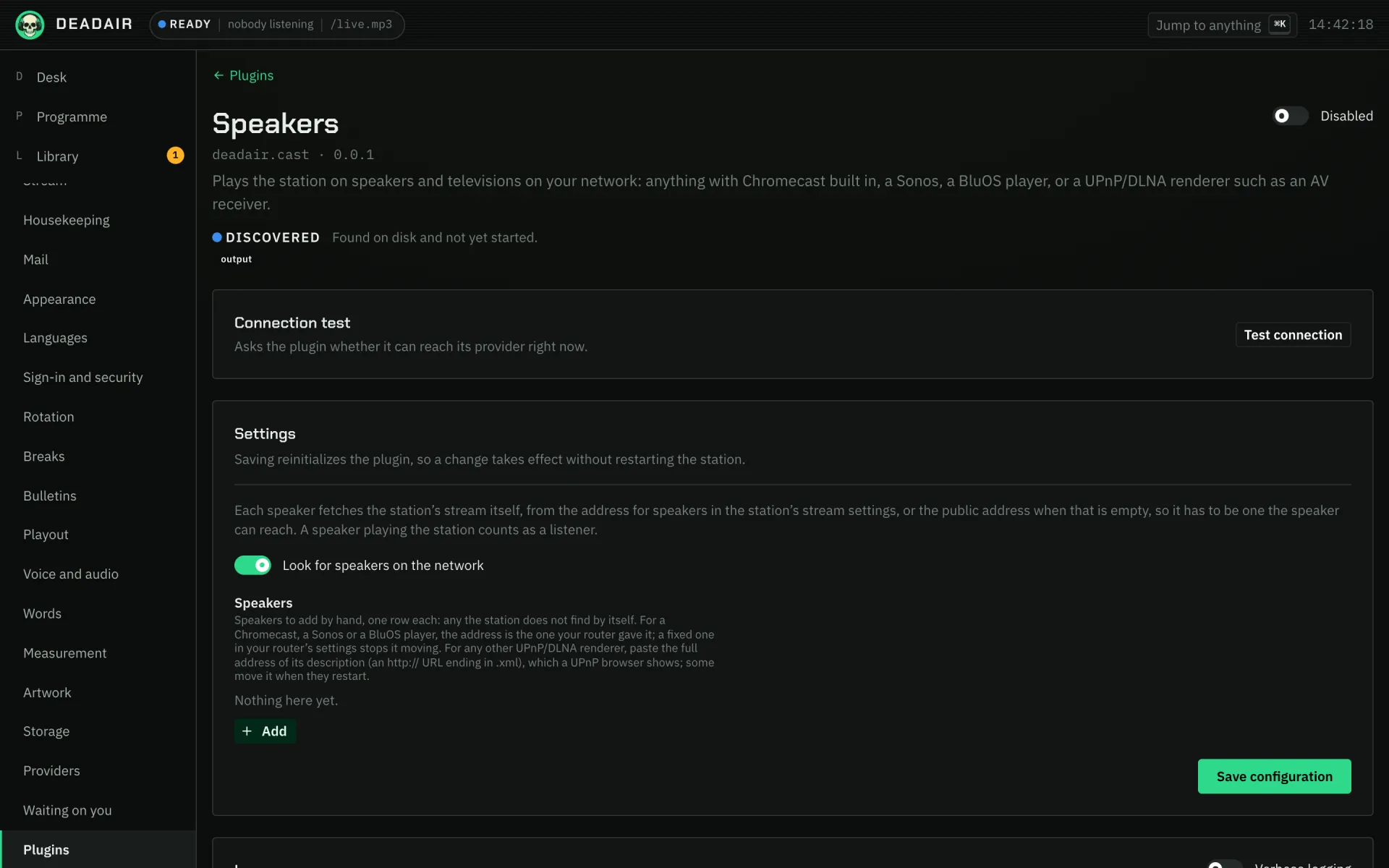 Fig. 1. Settings → Plugins → Speakers, before it is switched on and before any speaker is added.
You should see the plugin's status turn to Active.
2. Make sure it can find your speakers
The plugin finds speakers by listening for them on your network, and that only works when the station can see your network's multicast.
- The station runs straight on a machine, or in a container on the host's network. Nothing to do: go on to step 3.
- The station runs in a container on a bridge network. It cannot see them this way. Either add each speaker by its address (below), which works on any network, or run the container on the host's network. Finding speakers on your network says how for Compose, and Finding speakers why Unraid is best left on bridge.
To add a speaker by its address, open the Speakers plugin again and, under Speakers, press Add for each one:
- Name: what the Desk calls it, such as
Kitchen. - Kind: Chromecast (Google Cast), UPnP / DLNA (Sonos, receivers, televisions) or BluOS (Bluesound, NAD). A Sonos is UPnP.
- Address: for a Chromecast, a Sonos or a BluOS player, the address your router gave it, such as
192.168.1.20. Give it a fixed address in your router's settings so it does not move. For any other UPnP/DLNA renderer, paste the full address of its description, anhttp://URL ending in.xml, which a UPnP browser shows. Some renderers move it when they restart.
Press Save configuration. To check them, press Test connection on the plugin's page: it asks every speaker how it is, and says Connected. when they all answer.
3. Give speakers an address they can reach
A speaker fetches the stream itself, so it needs an address for the station that it can reach.
Open Settings → Stream and look at two fields:
- Public URL: where listeners reach the station. Speakers use it too, unless the next field is set.
- Address for speakers: where speakers fetch the stream from instead. Leave it empty to use the public URL.
Set Address for speakers to the station's plain http:// address on your network, such as
http://192.168.1.10:8080, when any of these is true:
- the public URL is
https://and the speaker cannot play HTTPS (some televisions' DLNA players cannot, Samsung's among them), - the speaker cannot reach the public address from inside your network,
- you would rather a speaker in the house did not go out to the internet and back to play the station.
Save. Listeners keep the public address; only speakers are handed this one.
4. Play on a speaker
On the Desk, press Play on a speaker under the transport. The menu says Looking for speakers… and then lists them under Speakers, each with its kind, such as Chromecast or UPnP, and its model. A speaker that can play more than one of the station's streams is listed once for each, with the format beside it (MP3, AAC and so on).
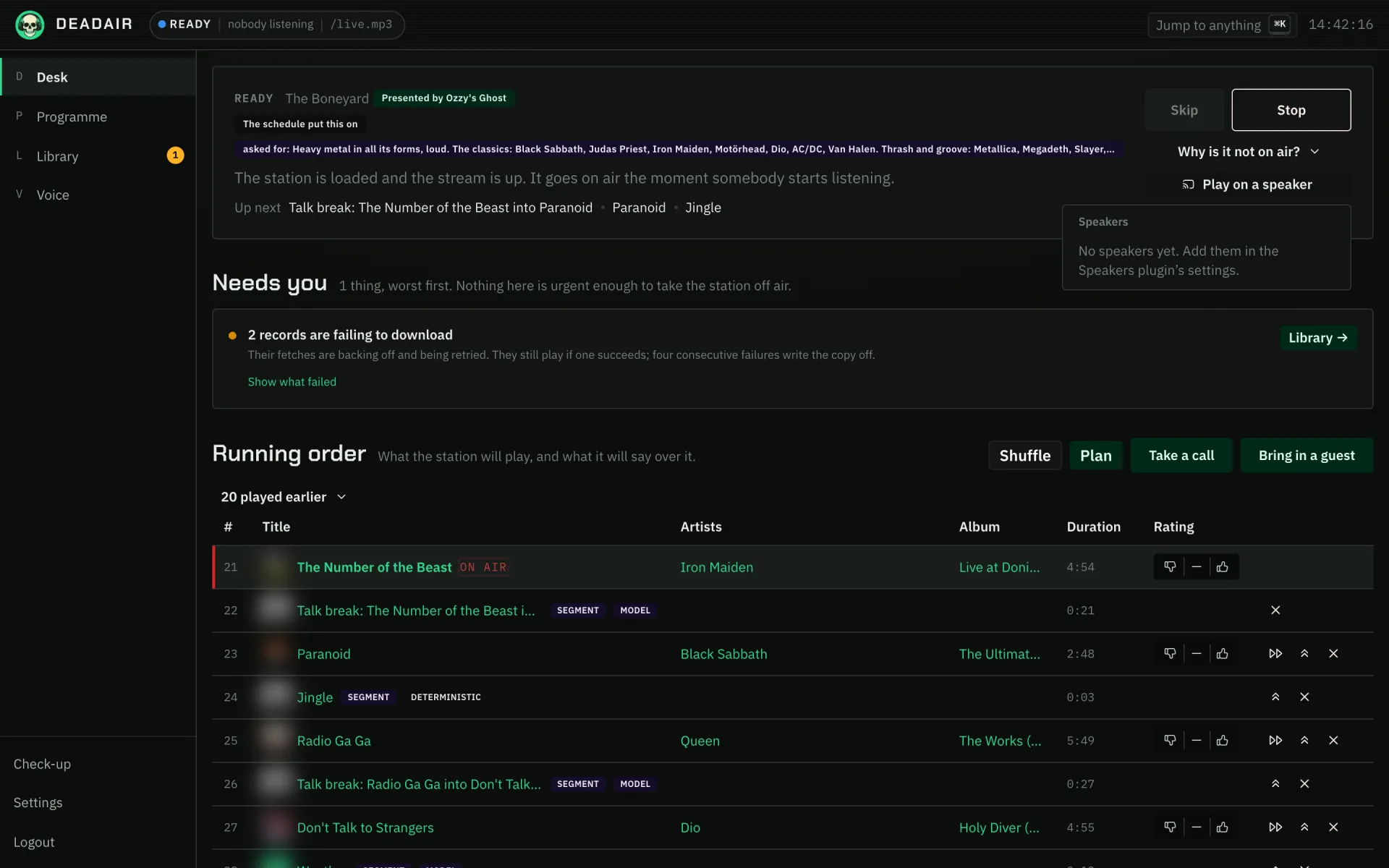 Fig. 2. The menu under Play on a speaker. Until the station finds a speaker, or you add one, it
says so here.
Fig. 2. The menu under Play on a speaker. Until the station finds a speaker, or you add one, it
says so here.
Choose one. You should see the button change to Playing on 1 speaker, and in the menu the speaker moves under Playing on, going from Starting through Buffering to Playing. The speaker plays the station a few seconds later and shows the station's name and the programme.
The speaker counts as a listener, so it holds the station on air while it plays. If the stream drops or the station restarts, the station starts it again by itself.
5. Stop it
Open Play on a speaker again and press Stop beside the speaker. Stopping it at the speaker, or playing something else on it, also lets it go: the station never plays over what somebody chose there.
If it goes wrong
- "No speakers yet. Add them in the Speakers plugin's settings." The plugin found nothing and none are added. On a bridge network that is expected: add them by address, as in step 2.
- "The station has never found a speaker on its network by itself, which on Docker usually means a bridge network." The same cause. Add speakers by address, or run the station on the host's network.
- "deadair.cast could not list its speakers." The plugin is not running properly. Open it under Settings → Plugins and read Last error and Logs.
- "The speakers could not be listed." The console could not ask the station. Reload the page.
- "Plays none of the station's streams" under a speaker. It cannot play any of the formats the station publishes. Turn on another format under Settings → Stream, or use another speaker.
- The speaker shows Not answering. It is switched off, asleep, or has a new address. For one you added by hand, check the address; a fixed address in your router stops this happening again.
- "The station could not be played on that speaker." The speaker refused or did not answer. Check it is on and on the same network, then try again.
- The speaker starts and then says the file format is not supported, or plays nothing. It cannot reach the address it was given, or cannot play HTTPS. Set Address for speakers as in step 3.
- "That speaker could not be stopped." Stop it at the speaker itself.
Next
- Throw a party to let the room choose what the speaker plays.
- Listening for every other way to hear the station.