Run the station from your phone
By the end of this page the deadair app on your phone is the station's remote as well as its player. You can skip a record, reorder what is coming, put a playlist or a chart on, ask for the news after this record, and take the station off air, all without opening the console.
Android and iPhone do this the same way, with the same names, so this page covers both. Listening describes each app in full.
You need the app on your phone, pointed at your station, and the operator's account: the email and password you sign in to the console with. The Android app is on Google Play. The iPhone app is not in the App Store yet, so on an iPhone you need to build it yourself for now.
If the app does not know your station yet, give it the station's address when it asks. Or open Check-up → Machinery in the console and scan the code under Listen with the phone.
1. Sign in as the operator
- In the app, open Settings.
- Under Account, press Sign in.
- Enter the email and password you use for the console, then the code from your authenticator app. If the station can send email, Email me a code instead works too.
Settings now says Signed in as the operator of this station. A listener's account says Signed in to this station as a listener, and gets requests and lyrics but none of what follows.
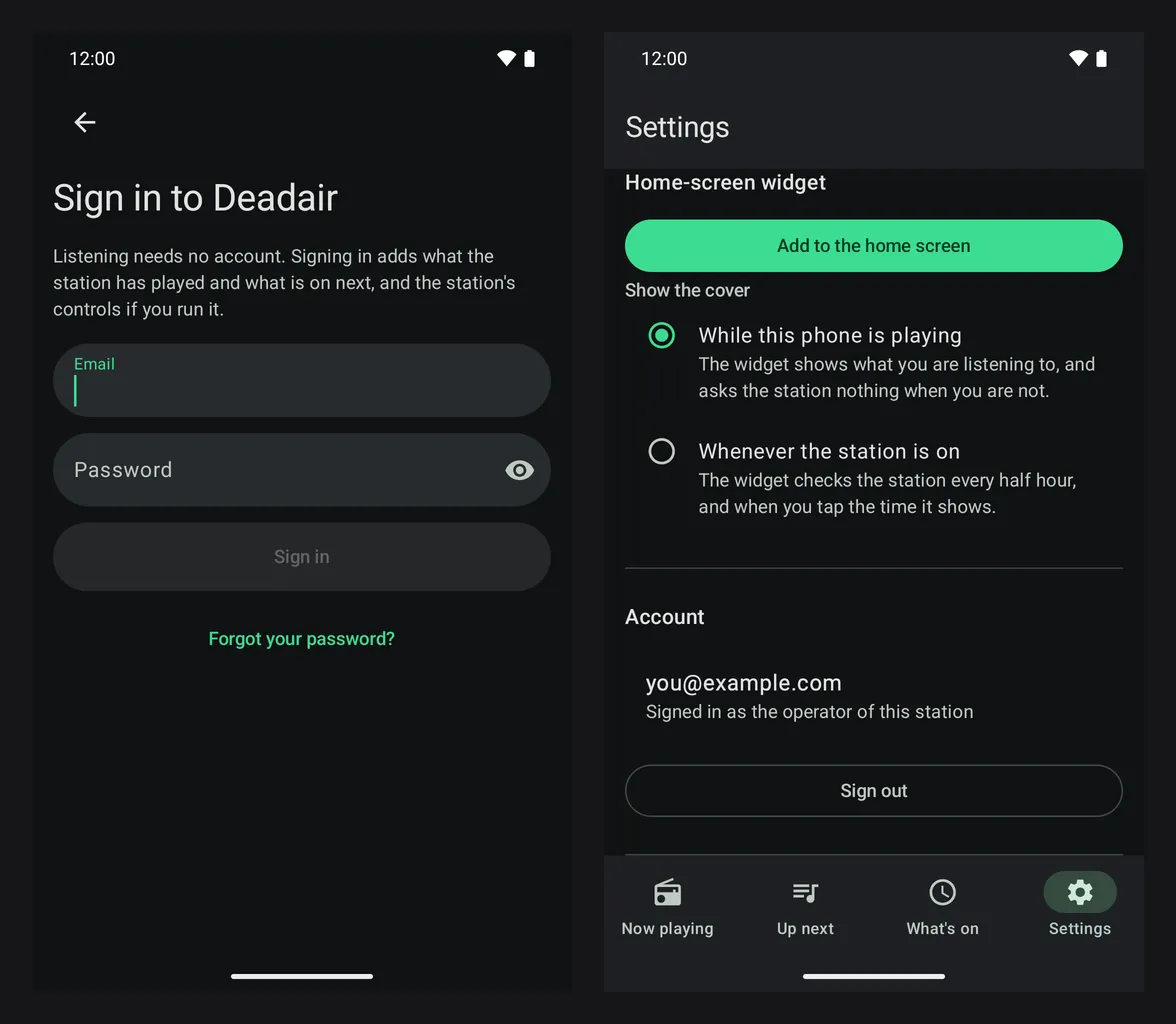 Fig. 1. Sign in, and Account once you are the operator.
If your account's only second step is a passkey, the app may not be able to use it. Add an authenticator app to your account from the console's Sign-in and security page first.
2. Now playing: skip, shuffle and rate
Once you are signed in, Now playing gets the operator's controls:
- Skip ends the record on air and moves to the next one. The next button on the lock screen, on a car's screen and on the steering wheel does the same, for you and nobody else.
- Shuffle (on Android, Shuffle what has not aired) reshuffles what is coming.
- Like this record, or the record's rating, tells the station what you think of it. Never play keeps it off the air for good.
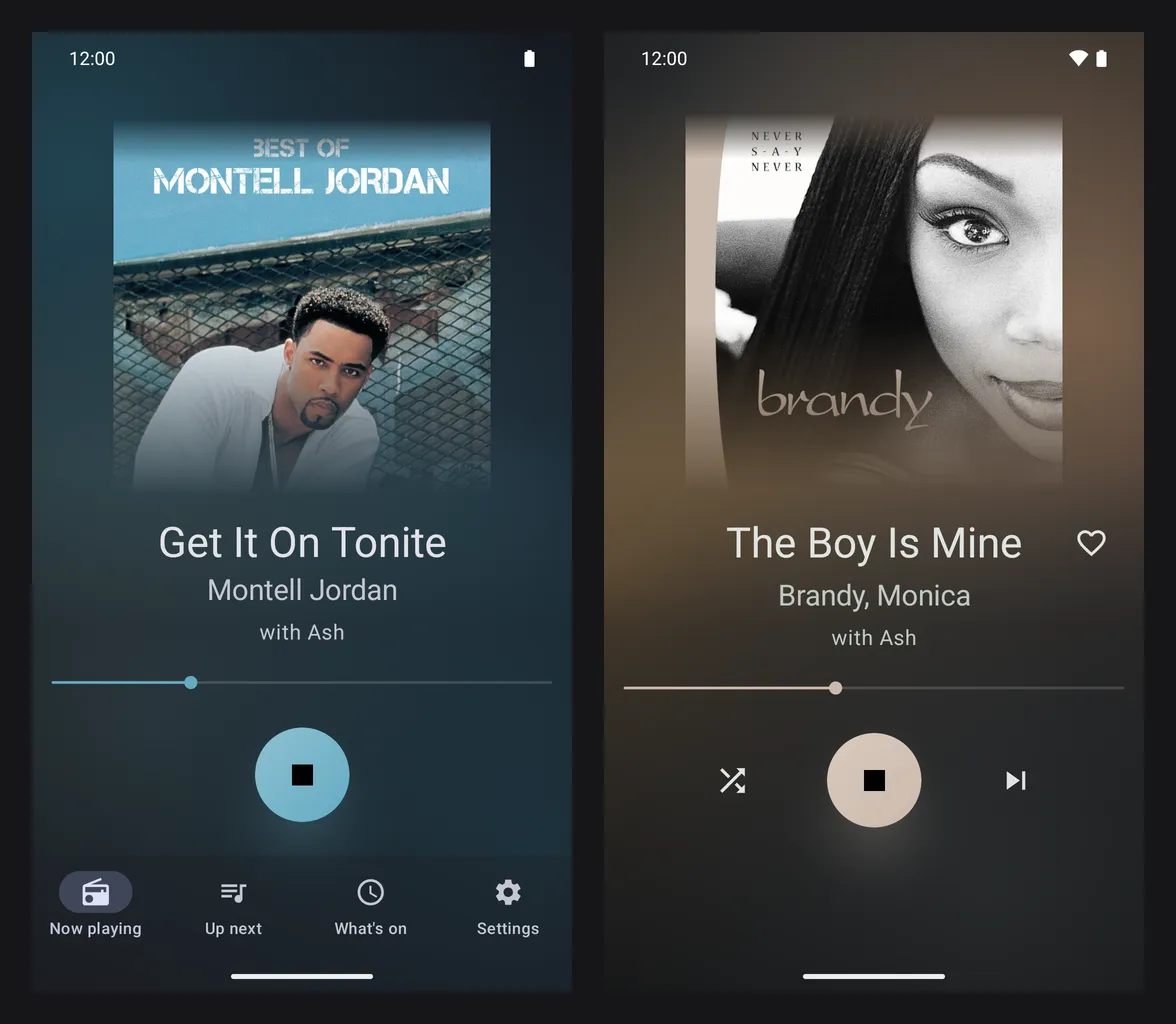 Fig. 2. Now playing for a listener, and for the operator.
Ratings work on albums, artists and what the station said too. Open a record from Up next to reach its album and artist.
3. Up next: reorder, drop and change the host
Up next is the running order: what is on air and what comes after it.
- Hold and drag a record to move it. On an iPhone, Move rows in a record's menu turns dragging on.
- A record's menu has Play next, Move up, Move down and Drop. On Android it is the menu beside the record; on an iPhone, press and hold the record.
- Change the host picks who presents this show, from Who presents this show.
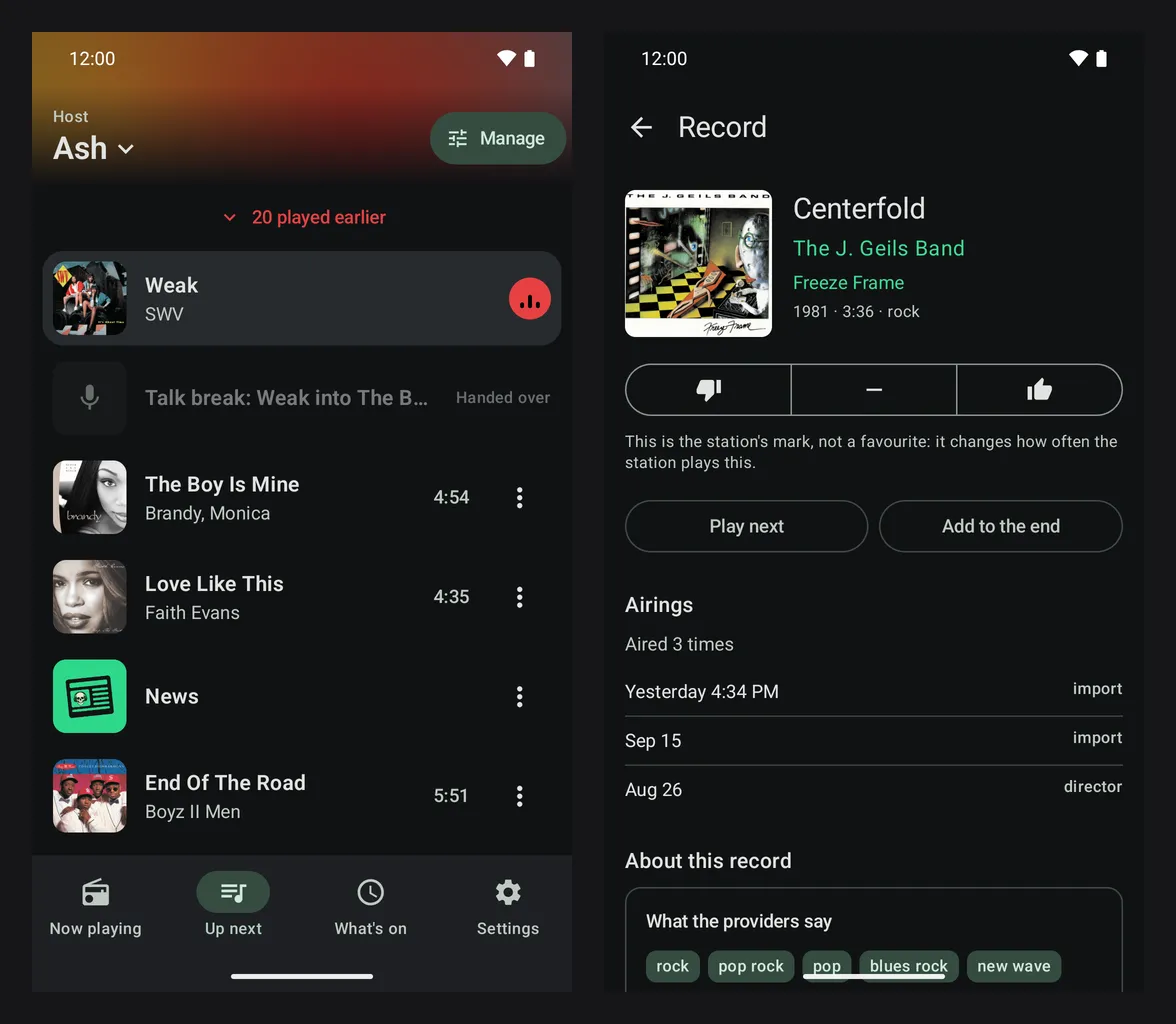 Fig. 3. Up next, and a record opened from it.
4. Manage: put something on, add a record, say something
On Up next, press Manage. It has four parts:
| Under | What it does |
|---|---|
| This show | Replan the show throws away what is planned and picks again. Add a record searches the library by title: Play next puts it straight after what is already coming, Add to the end puts it last. |
| Put something on | Playlists lists your playlists and the charts the plugins publish. Air this playlist or Air this chart replaces the running order and goes out to everybody listening. A chart asks Which way round? first. |
| Say something | The news, The weather or A word from the host, after this record, once it is written. A break takes a moment to write, so it is not instant. |
| What it said | Every break's script, and what became of it. Rate one with The station should not say things like this. |
A record the station has no audio for yet is listed but cannot be added. One the station refuses, such as one you disliked, is refused with a sentence that says why.
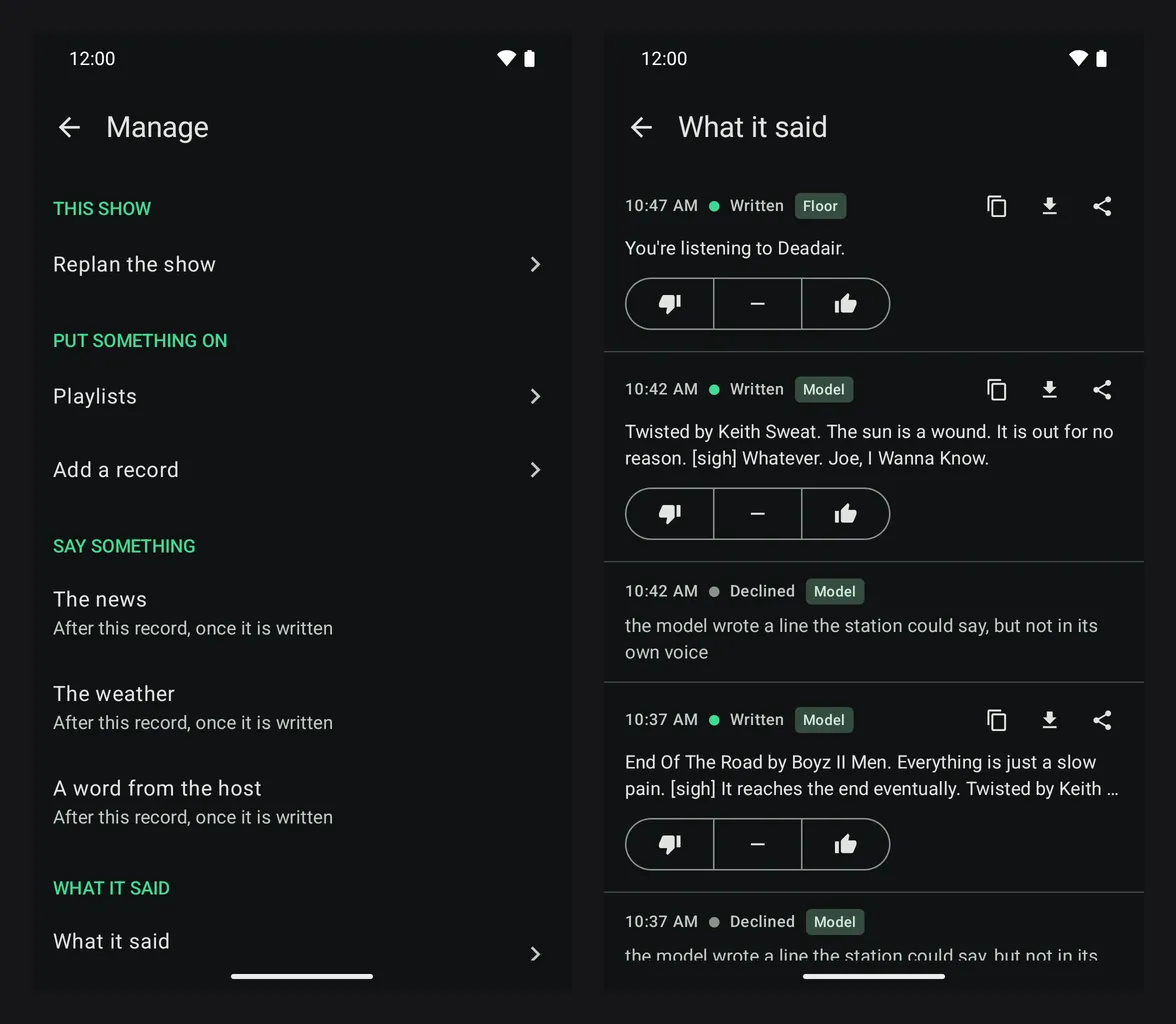 Fig. 4. Manage, and What it said behind it.
5. The desk: on air, off air, and why
In Settings, press The desk. This is everything that can take the station off air:
- Whether it is On air, and who it is going out to. "Going out, and nobody is listening" is a station on air with no audience.
- Take off air stops it. It asks for a second press (Press again to go off air), so a stray tap does nothing.
- Hold: something you put on yourself runs until the next scheduled block begins. Keep it on past the next block holds it there until you let it go.
- Show why explains why the station is, or is not, on air.
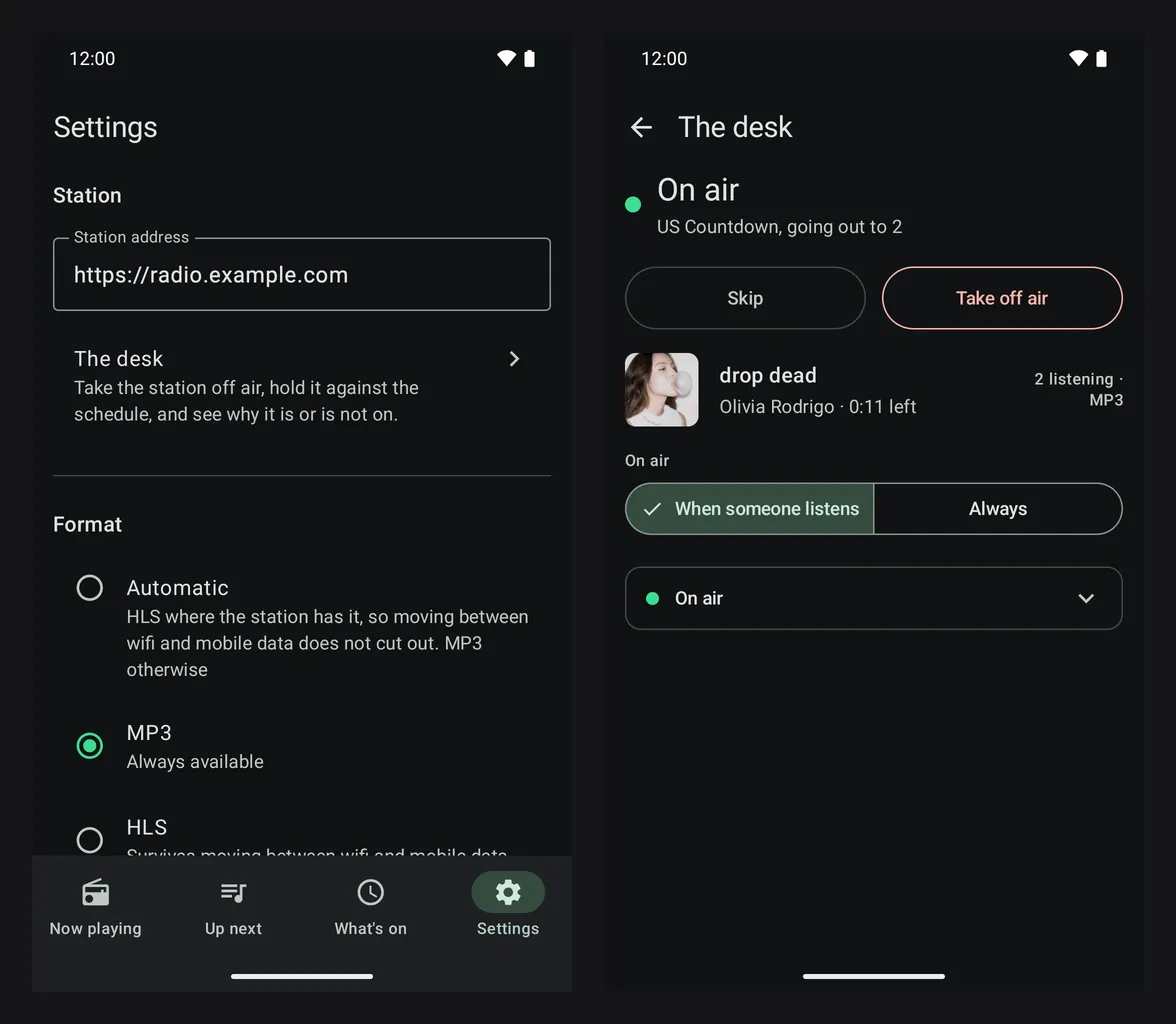 Fig. 5. The desk, from the top of Settings.
In a car
Through Android Auto or a car's Bluetooth controls, pause stops the stream, the next button is your Skip, and play on the steering wheel starts the station even when the app is not running. CarPlay waits on Apple's approval, so the iPhone app does nothing in a car yet.
If it goes wrong
- The operator's controls do not appear. The account is a listener's. Sign in with the account you use for the console.
- "This account's second factor is one this app cannot use." Your only second step is one the app cannot use. Add an authenticator app from Sign-in and security in the console.
- "The station wants your authenticator code again before that." Some actions need you to prove it is you again. Do it once in the console, then try again from the phone.
- "The station no longer treats this account as its operator." Your role changed. Ask another admin, or check Settings → People in the console.
- Say something did nothing straight away. It is written first and goes out after the record on air. The app says when it is on its way.
Next
- The station on your Android home screen: a tile, a widget and the station as wallpaper.
- Let friends listen, to give somebody else a listener's account.