Install on Unraid
By the end of this page the station is running on your Unraid server and you are signed in to its console as the administrator. It takes about ten minutes, most of it the first boot.
This page follows one path: the full tag, which brings its own database and cache, on a server
reached on your own network. On Unraid is the reference for every field in the form,
the other two tags, and a proxy in front.
You need: an Unraid server on amd64 (there is no arm64 image yet), Community Applications
installed so the Apps tab exists.
1. Install the template
- Open Apps and search for
deadair. - Choose Install. Unraid opens the container's settings form, already filled in with the template's defaults.
- Make Repository end in
:full. If Unraid asks which tag to install, choosefullthere. Otherwise change the end of Repository from:latestto:full. The template's default islatest, which expects a database and cache you run yourself. Left on it with those fields empty, the first boot stops atdeadair: no database.
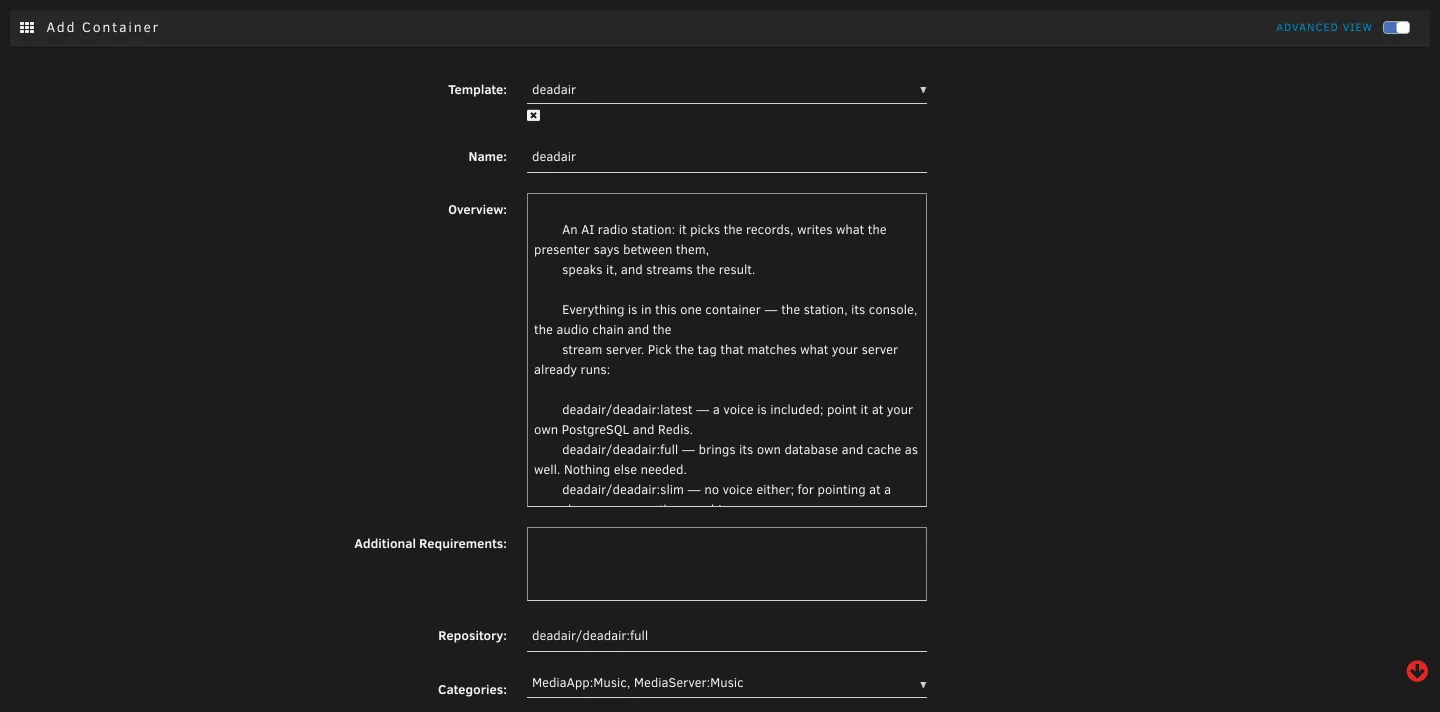 Fig. 1. The top of the form, with Repository already changed to
 :full. The tag is the end of
Repository.
2. Fill in the four required fields
Everything you need is in the Basic view. Leave the Advanced view closed.
| Field | Put in it |
|---|---|
| WebUI | Leave it at 8080 unless something else on the server already uses that port. |
| Data | Leave it at /mnt/user/appdata/deadair. |
| Public address | The address you will type into a browser to reach the station, such as http://192.168.1.10:8080. Use your server's own address and the WebUI port, with nothing after the port. |
| Console address | The same address again. |
| Secret key | Leave it empty. The station makes one on its first boot. |
| Session key | Leave it empty too. |
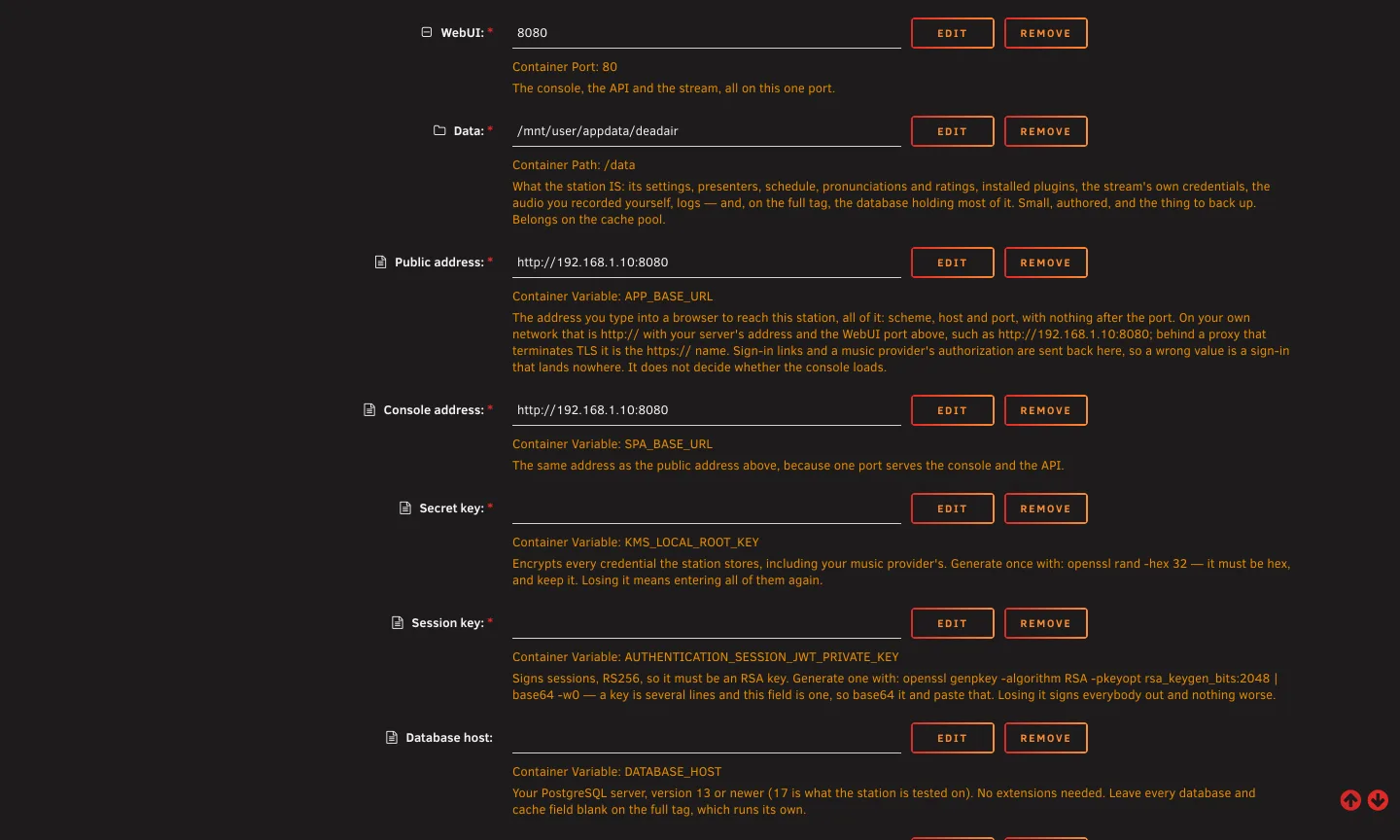 Fig. 2. The required fields and the two keys, which stay empty.
Set Timezone too, to where the station is, such as America/New_York. Leave every database and
cache field empty: on full they are not used.
Get the two addresses right. A wrong one still lets the console load, so the mistake hides until a sign-in link or a Spotify authorization sends your browser somewhere that does not answer. Why.
3. Start it and watch the first boot
- Choose Apply. Unraid pulls the image and starts the container.
- On the Docker tab, open the container's log from its icon.
- Wait for the line
Boot complete. The first boot applies the database schema and can take a few minutes. Later boots are quicker.
There is no permissions step: the container runs as 99:100, which already owns the appdata share.
4. Create the administrator
- Open the Public address in a browser, or choose WebUI from the container's menu.
- The console opens on Set up deadair. Enter an email address and a password and choose Create administrator.
That account is the only way in, so keep the password somewhere safe.
You should now see the console's Desk. The station is installed but has nothing to play yet.
If it goes wrong
Ask the container. In the Unraid web terminal, docker exec deadair deadair-doctor checks the
data share, the keys, the database, the cache and the two addresses, and says what to fix in one line
each.
- The container stops, and the log names a variable. That field is empty in the form.
- The log says it cannot reach the database. The tag is not
full, or a database field has something in it. Empty them, or see On Unraid forlatest. - The console loads but a sign-in link goes nowhere. Fix Public address and Console address, then restart the container.
On Unraid § When it will not start has the rest.
Next
Your first hour on air: give the station music, say who it is, and put something on.