The station on your Android home screen
By the end of this page you can start the station without opening the app: from a tile in the notification shade, from a widget on the home screen, or with the cover of what is playing as your wallpaper. You will also set a sleep timer and decide when the screen stays on.
Each of these is optional and none depends on another. Listening describes the Android app in full.
You need the deadair app from Google Play, already pointed at your station. None of this needs an account.
1. A tile in Quick Settings
- Pull the notification shade all the way down and press the pencil, or Edit.
- Find the deadair tile and drag it up among your tiles.
- Press Done.
Press the tile to start the station and again to stop it. Between the press and the first sound it says it is warming up: that is the station coming on air for its first listener. If it says Choose a station first, open the app and give it your station's address.
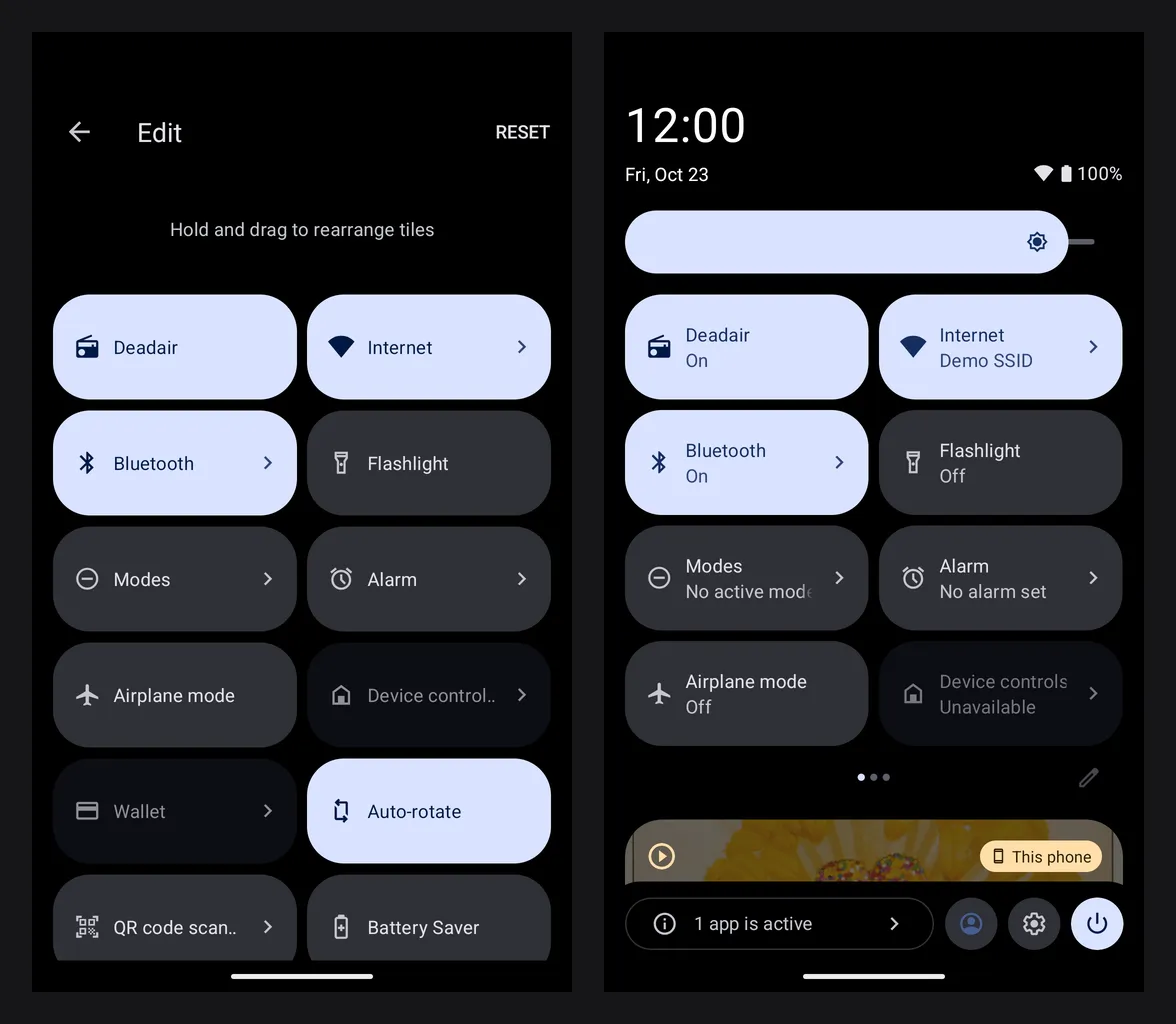 Fig. 1. The tile placed in the editor, then in the shade.
2. A widget on the home screen
- In the app, open Settings and find Home-screen widget.
- Choose what it shows:
- While this phone is playing (the default) shows what you are listening to, and asks the station nothing when you are not.
- Whenever the station is on checks the station every half hour, and when you tap the time it shows. Use it to see what is on before you press play.
- Press Add to the home screen and place it. Or add it from your launcher's own widget list.
The widget shows the cover and what is playing, or who is on the mic while the station talks, with a button to start and stop it. When an answer is more than two minutes old it says how old.
Signed in as the operator (Run the station from your phone), the widget has Skip this record as well. It asks for a second press (Press again to skip) and forgets the first after five seconds, so a press in a pocket skips nothing.
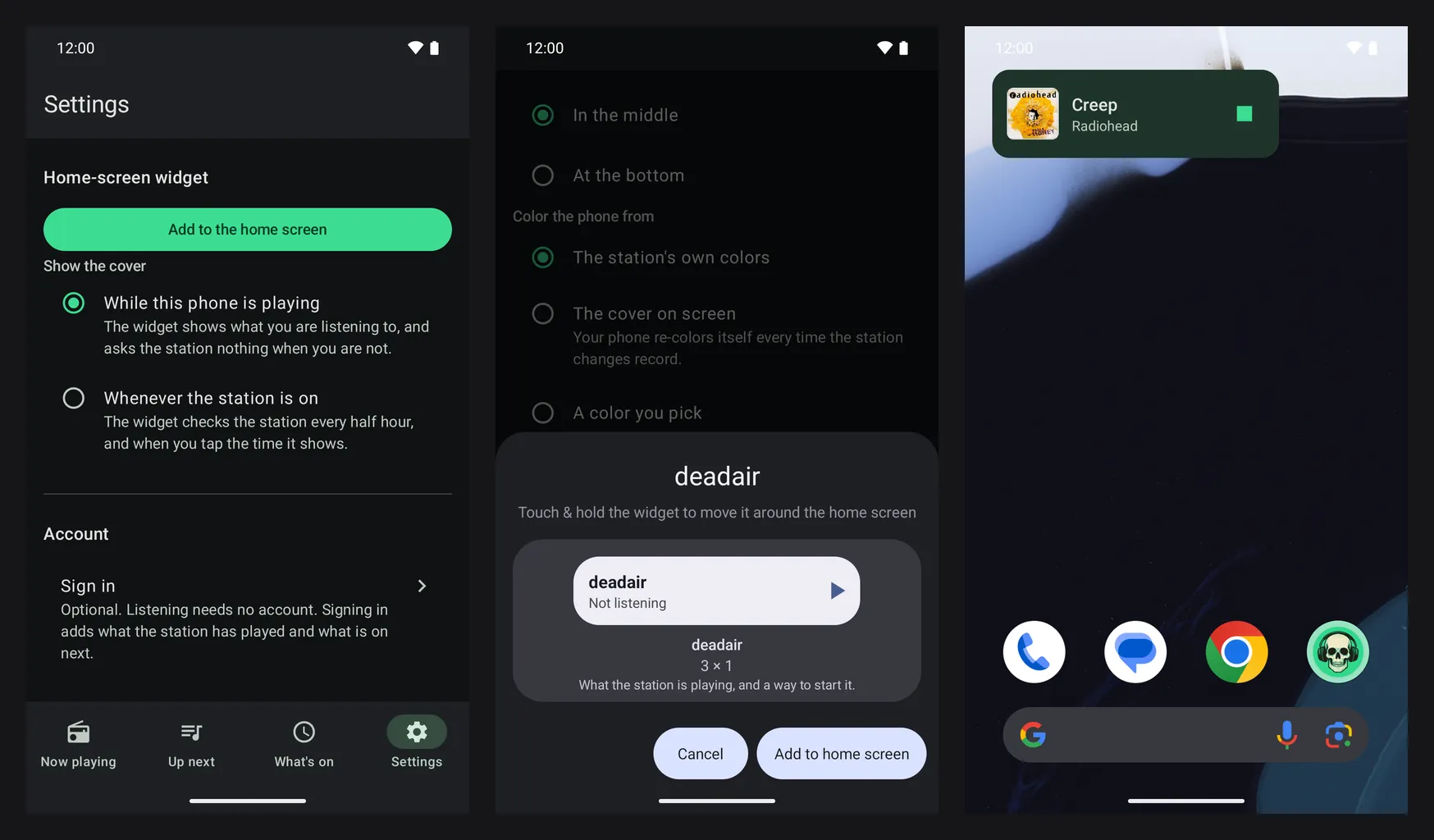 Fig. 2. Home-screen widget in Settings, the launcher placing it, and the widget at work.
3. The station as your wallpaper
-
In Settings, find Station wallpaper.
-
Set it up:
Setting Choices Show the cover While this phone is playing, or Whenever the station is on air. The first asks the station nothing while you are not listening. With nothing to show Keep the last cover, dimmed, The station's mark, or Nothing at all. Put the cover At the top, In the middle or At the bottom, wherever your icons are not. Color the phone from The station's own colors, The cover on screen (the phone re-colors itself every time the record changes), or A color you pick. -
Press Set as wallpaper. Android's own picker opens on it: choose the home screen, the lock screen, or both.
Your old wallpaper is not touched. To take the station off, choose another wallpaper the usual way.
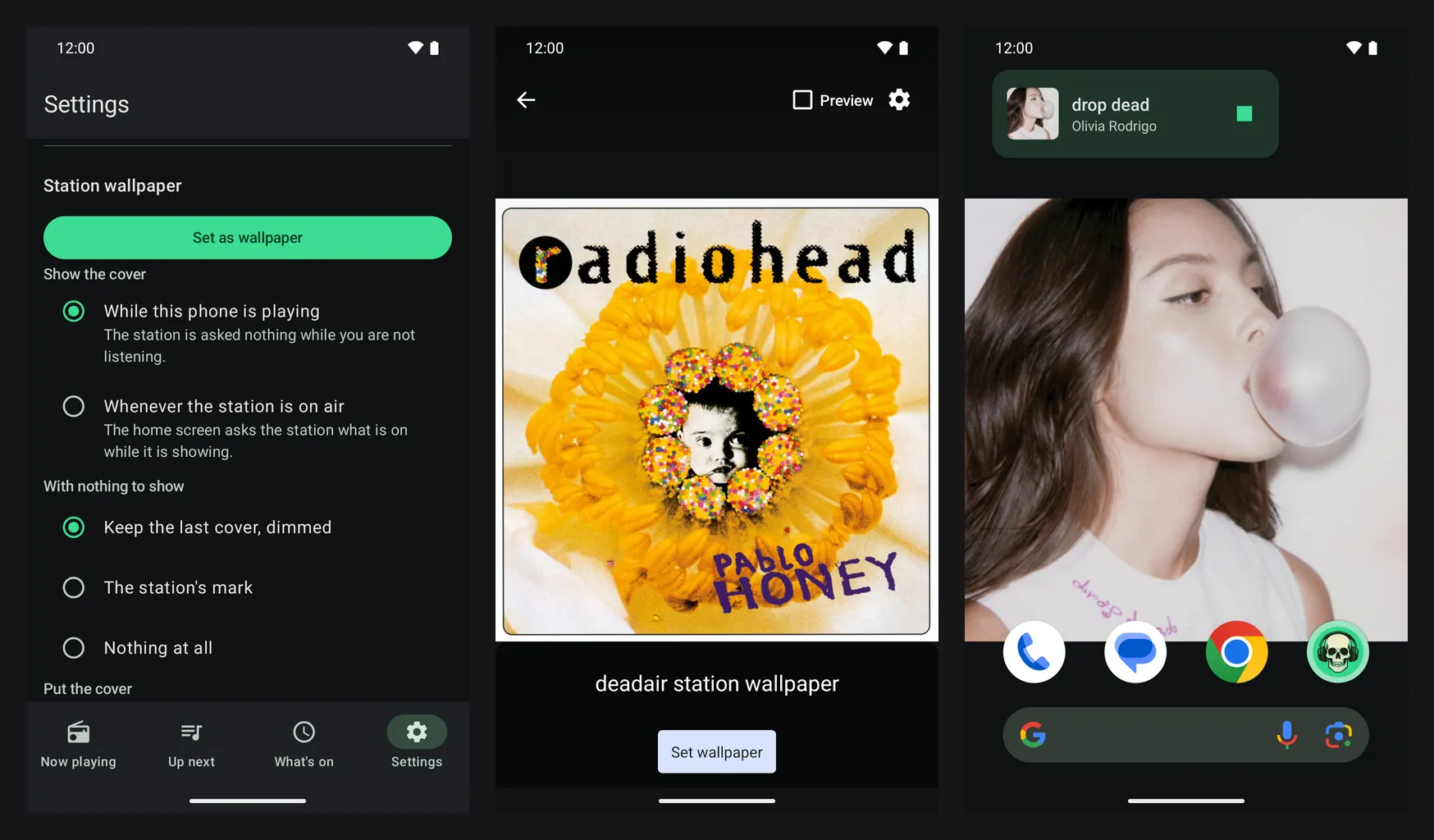 Fig. 3. Station wallpaper in Settings, Android's picker, and the result.
4. A sleep timer
Start the station, then open Settings and find Sleep timer under Listening. It only appears while the station is playing. Choose 15, 30, 45 or 60 minutes, or After this record. The station fades out over the last ten seconds and stops on this phone. Turn off the timer cancels it.
The timer stops listening on this phone only. Nobody else's stream is affected.
5. Keep the screen on
Under Settings → Listening, Keep the screen on answers Never (the default), While charging, or Always. It holds the screen on only while this phone is playing the station and Now playing is in front, so a phone on a dock by the bed can show the cover all night.
Left alone for a few seconds while a record plays, Now playing fades its words and controls away and the cover fills the screen. Touch it to bring them back.
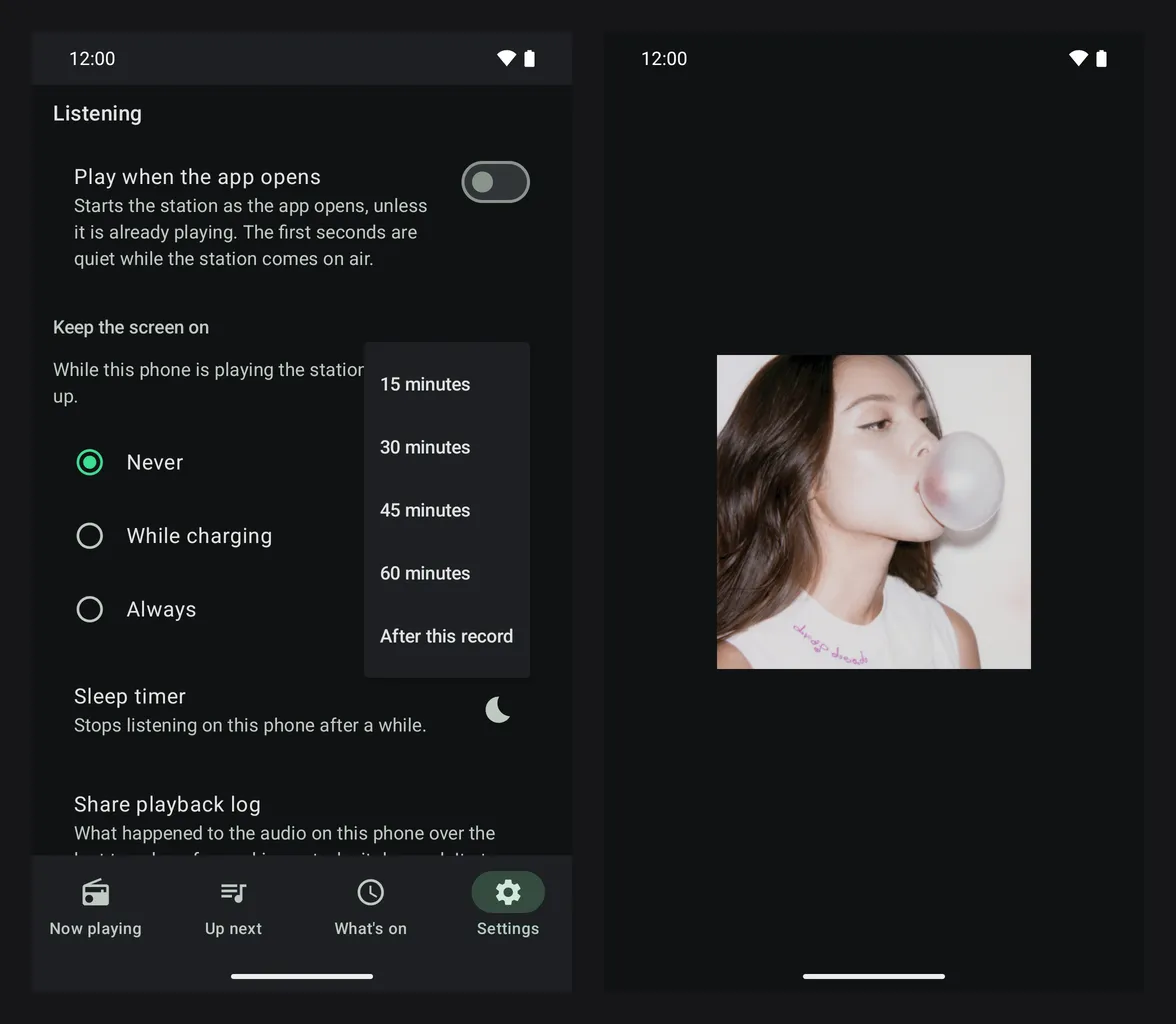 Fig. 4. The sleep timer and Keep the screen on under Listening, and Now playing left alone.
If it goes wrong
- The tile says "Choose a station first". The app has no station yet. Open it and give it the address.
- The widget or wallpaper shows something old. It is set to follow this phone, and this phone is not playing. Set it to follow the station instead, or tap the time on the widget.
- The wallpaper did not change. Android's picker needs you to confirm. Press Set as wallpaper again and choose where it goes.
- The sleep timer is missing. It appears only while the station is playing on this phone.
Next
- Run the station from your phone, to sign in as the operator and use the app as the station's remote.
- Play the station on a speaker, for a room rather than a phone.