The console
The console is a broadcast desk rather than a player. It shows what is going out, what needs you and what is coming, and it deliberately does not play the station: listeners use the stream itself, or the phone and desktop apps (see listening). Everything you do in it acts on the one broadcast every listener hears, which is why its button says Air this playlist rather than Play.
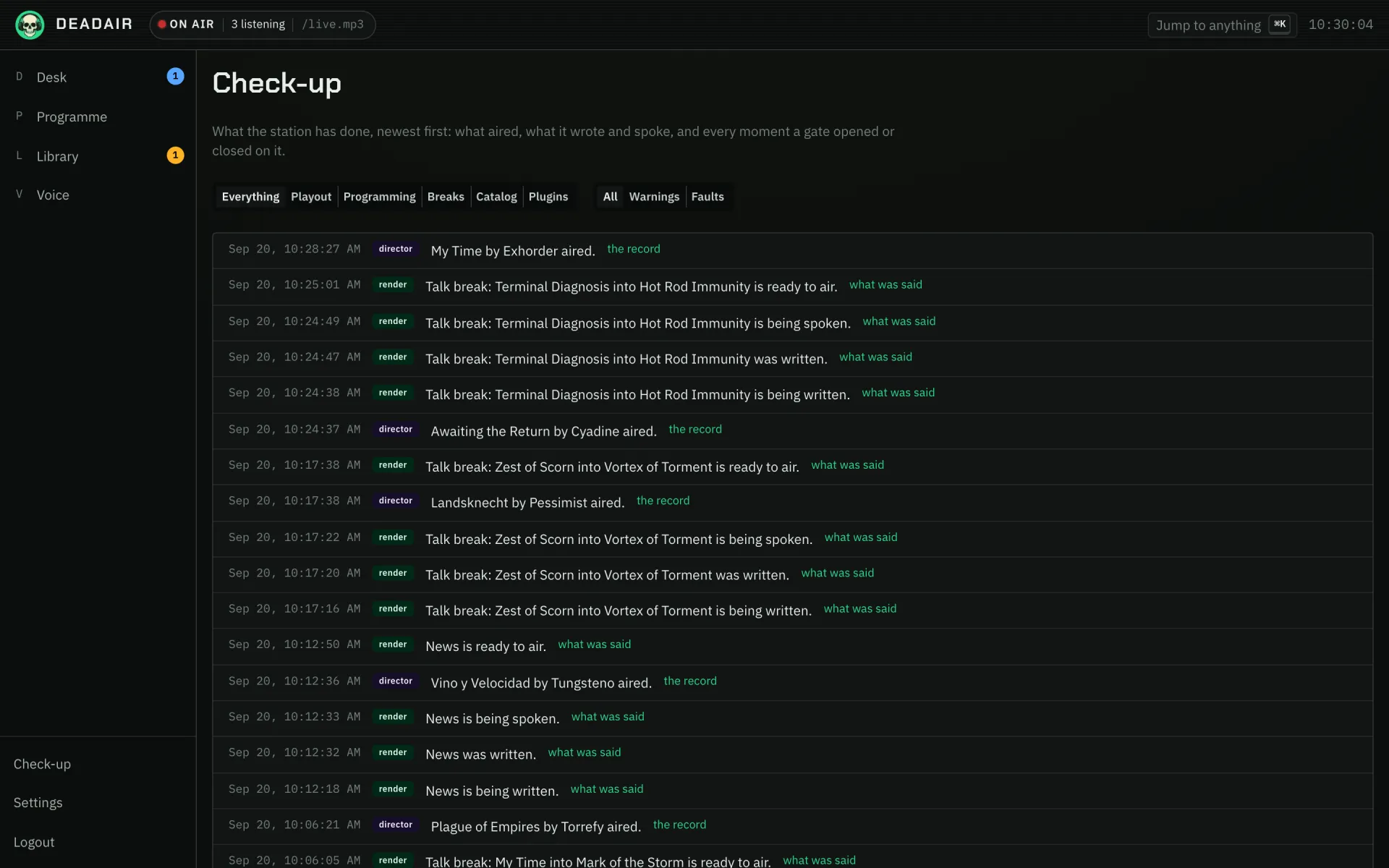 Fig. 1. What it has been doing.
Where things are
A rail down the left carries four destinations, each with its sections listed beneath it:
- Desk: what is on air now, what needs you, and the running order, with Skip and Stop beside the thing they act on, and Take a call and Bring in a guest beside it. See the running order and phone-ins.
- Programme: Today, the Timetable across the week, Specials (shows on dates, like Halloween), Sustaining (what plays when nothing is scheduled), Requests (and a party's code, for guests to ask from their phones), and Leans and rules. See the programme.
- Library: Tracks, Artists, Playlists, Charts, News, Podcasts and Readings. See the library, podcasts and readings.
- Voice: Characters, Auditions, Voices, Segments, Pronunciations, Soundboard, Subjects, Productions, and What it said. See characters.
Below a rule sit Check-up, for what is wrong right now (see the check-up), and Settings.
The header carries the tally: whether the station is on air, how many are listening, and on which mount. It sits in the chrome for the reason a studio puts the tally over the door: every page needs it and no page owns it.
Its language
The console is in English unless you choose otherwise: under Settings, Languages, anybody can show it in any language the station has a language pack for, and an admin imports those packs there. Your choice follows you to every browser you sign in from. It has nothing to do with the language the station broadcasts in. See languages, which also covers translating the console.
Moving around by keyboard
The four destinations have keys: D, P, L and V. They do nothing while you are typing in a field or have a dialog open, so a letter never navigates away from unsaved work.
⌘K (Ctrl+K off a Mac) opens Jump to anything: every destination, section and settings page, listed as soon as it opens. Type two characters or more and it also searches records, artists and characters by name.
What it has been doing
Check-up → What it has been doing is the activity feed: newest first, what aired, what the station wrote and spoke, and every moment a gate opened or closed on it. Filter by where a line came from (Playout, Programming, Breaks, Catalog, Plugins), or to warnings and faults, the only lines drawn in colour. A station idling on purpose for want of a listener writes an ordinary line, because it is not a fault. A line about a record or a break links to it.
What it cost
Check-up → What it cost lists every call the station made, filed under the decision that made it: when, how long it took, how many calls, and how many failed. A decision that set off another is drawn indented beneath it, so a job and the work it queued read as one story. Open a decision to see each call, with details such as tokens where they were recorded. Each call is written as it ends, so one that timed out is still here with what it cost. The station keeps a few days of these.
Three themes
Settings → Appearance offers three ways to read the same console:
- Carbon: the studio at night, phosphor green on carbon.
- Studio White: daylight and paper, rules instead of fills.
- Neon Transmitter: neon yellow on teal-black, lit cyan and magenta. The loudest of the three.
The choice is remembered on that browser and changes nothing about the station. The tally stays red in all three, because it is the one colour that means the same thing in every room.
Below the themes, Clock sets how times of day read: 12-hour, 24-hour, or as each screen has it. Left as each screen has it, the clocks on the on-air screens run on the station's 24-hour day and the activity feeds read 12-hour. Choosing one puts every time in the console on it, the header clock, the schedule grid and the date pickers included. Like the theme, it is remembered on that browser.
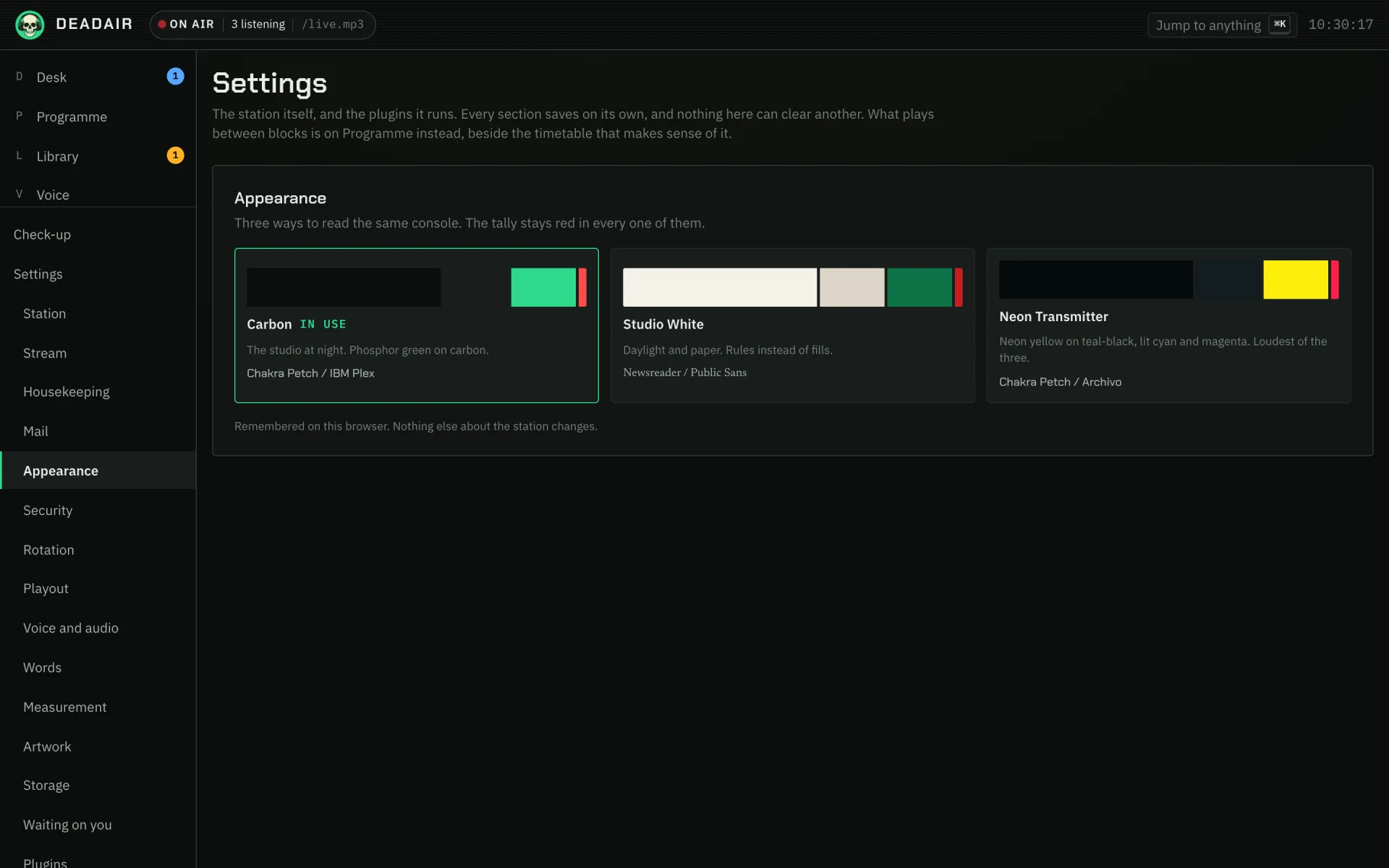 Fig. 2. Appearance.
On a phone
On a narrow screen the rail becomes a bar across the bottom with the four destinations, one thumb-sized tap each. Check-up, Settings and Logout sit behind the menu in the top corner, beside a search button for Jump to anything. Most tables become cards rather than scrolling sideways, so a control you need is never off the edge of the screen.
On a Stream Deck
The desk comes as keys too: a plugin for the Elgato Stream Deck puts what is on air, Skip, Stop and your opinion of the record playing under your fingers. Like the console, it never plays the station.
- Now playing shows the record's cover, its title and who it is by, and a bar along the top that fills as it plays, red while the station is on air. When nothing is playing it shows the deadair mark and says why in the console's own words: ready, off air, warming up. Pressing it opens the console. Each Now playing key can leave out the bar, or the title and artist, for a key that is only the cover.
- Skip ends the record or break on air, the same Skip the console has.
- Stop or start is Stop while the station is on air. Press it once and it says Confirm; press it again within five seconds and the station stops. Leave it and it forgets. Once the station is stopped, the same key is Start.
- Like and Dislike set what the station thinks of the record on air — the same rating the running order and the library carry, and it applies everywhere they do. A like means play this more often; a dislike means never again, and nothing routes around it. Both keys draw the station's own skull on a heart, and the heart fills with colour when the station already agrees: press the lit key to take the opinion back. With nothing to rate — a break, a record your library has never taken in, or a station that is not answering — the key goes faint and does nothing.
- Request asks the station to play a record, as a request from the phone app would, from the account that issued the API key. Pick a record in the key's settings by searching for it, and each press asks for that record: a tick when the station takes it, the warning triangle when it turns it down. With no record picked, a press opens the Desk's Request a record dialog in your browser instead, to choose one there. The key shows the request icon and no words; give it a title of your own in the Stream Deck app if you want one.
- Grant request is for a station that waits for an operator to approve each request. It counts how many are waiting on a red badge, and a press lets through the one that has waited longest. With nothing waiting it goes faint.
A key that cannot reach the station says so (No station, Key refused) and keeps the last cover it had, faint, so nothing on it looks current when it is not.
It talks to the station with an API key rather than your password. Issue one under Settings → Sign-in and security, API keys: Read only is enough for Now playing, and to see what the station already thinks of a record; Skip, Stop, voting and Grant request need Read and manage; Request works with either. Then drag a deadair key onto the Stream Deck, open its settings, and enter your station's address and the key once; every deadair key shares them, and Test connection says whether both work. The key stays on that computer and is never written into a Stream Deck profile you export.
It needs the Stream Deck app 7.1 or later, on macOS or Windows. Install it from the Elgato Marketplace, which keeps it up to date. The same radio.deadair.streamdeck.streamDeckPlugin is on the latest Stream Deck release if you would rather open the file yourself. The source is in the plugin's directory.
Signing in
Settings → Sign-in and security is how you sign in. Enrol an authenticator app (Google Authenticator, 1Password, Aegis, anything that shows six-digit codes) or a passkey (Touch ID, Face ID, Windows Hello, your phone or a security key), and every sign-in to that account asks for it after the password. Remove the last one and sign-in goes back to the password alone. Any change asks you to confirm it is you first if you have not in the last few minutes.
A passkey belongs to the address the station is deployed at, so it works there and nowhere else, which is what makes it hard to phish. Two consequences. It needs the station at an https:// address, or localhost: a browser will not use a passkey on a plain http:// address on your network, and the console does not offer one there. And the phone apps cannot use it: they ask for an authenticator code. With a passkey enrolled, the sign-in page also offers Sign in with a passkey, which needs nothing but your address and a touch.
Settings → Mail makes the other half work. Point it at any SMTP server and the station can email a sign-in code as a second factor, and a sign-in link as a first: "Email me a sign-in link" on the sign-in page, no password at all. The link is the whole of the sign-in, so anybody who can read that message can get in. It works once, expires in half an hour, and should not be forwarded. An account with an authenticator is still asked for the code afterwards, because a link proves the inbox, which is one factor and not two.
Settings → Sign-in and security adds a "Continue with" button to the sign-in page for each identity provider you list there: Google, Authelia, Authentik, Keycloak, Microsoft, or anything else that speaks OpenID Connect. Register the station with the provider as a web application, giving it the redirect address shown above the list (it has a Copy button). Then press Add and pick your provider, which fills in its name, button and issuer, or the shape of the issuer with auth.example.com for you to replace with your own server. Copy the client id and client secret the provider gave you into the row and save. Under the list, the station says whether each provider answered, and why not if it didn't. Anybody with an account here signs in through a provider that vouches for their address. Somebody new gets an account only if their address, or its domain, is on the list below the providers, and that account is a listener until an admin says otherwise under People. An account made this way has no password, so the phone and desktop apps, which sign in with one, cannot use it. To give somebody an account with a password and a second step, which the apps can use, invite them instead.
Until a mail server is set, the station sends nothing and says so. It will not offer you an emailed code it cannot deliver, so a station with no mail signs you in on the password alone. If you lose your authenticator, another admin can reset your second step under People. If you are the only admin and have no mail either, the project README says how to get back in from the machine.
In the console
The rail holds Desk, Programme, Library and Voice, with Check-up and Settings below the rule. The activity feed and the cost of each decision are under Check-up. Themes are Settings → Appearance; sign-in is Settings → Sign-in and security and Settings → Mail; other people's accounts are Settings → People. The pictures a listener's player shows while the station is talking are Settings → Artwork.